1. Item Name : Bioxlab React Next js Template
  2. Created: 14 Februari 2023
  3. Item Version : v 1.0.0
  4. Author : theme_pure
  5. Support Ticket: https://help.themepure.net/support/login
Introduction

Bioxlab React Next js Template Documentation

For any support please don't hesitate to contact us at Support Center. We provide 13 hours real-time support for our customers.

We would like to thank you for choosing Boixlab.

Getting started

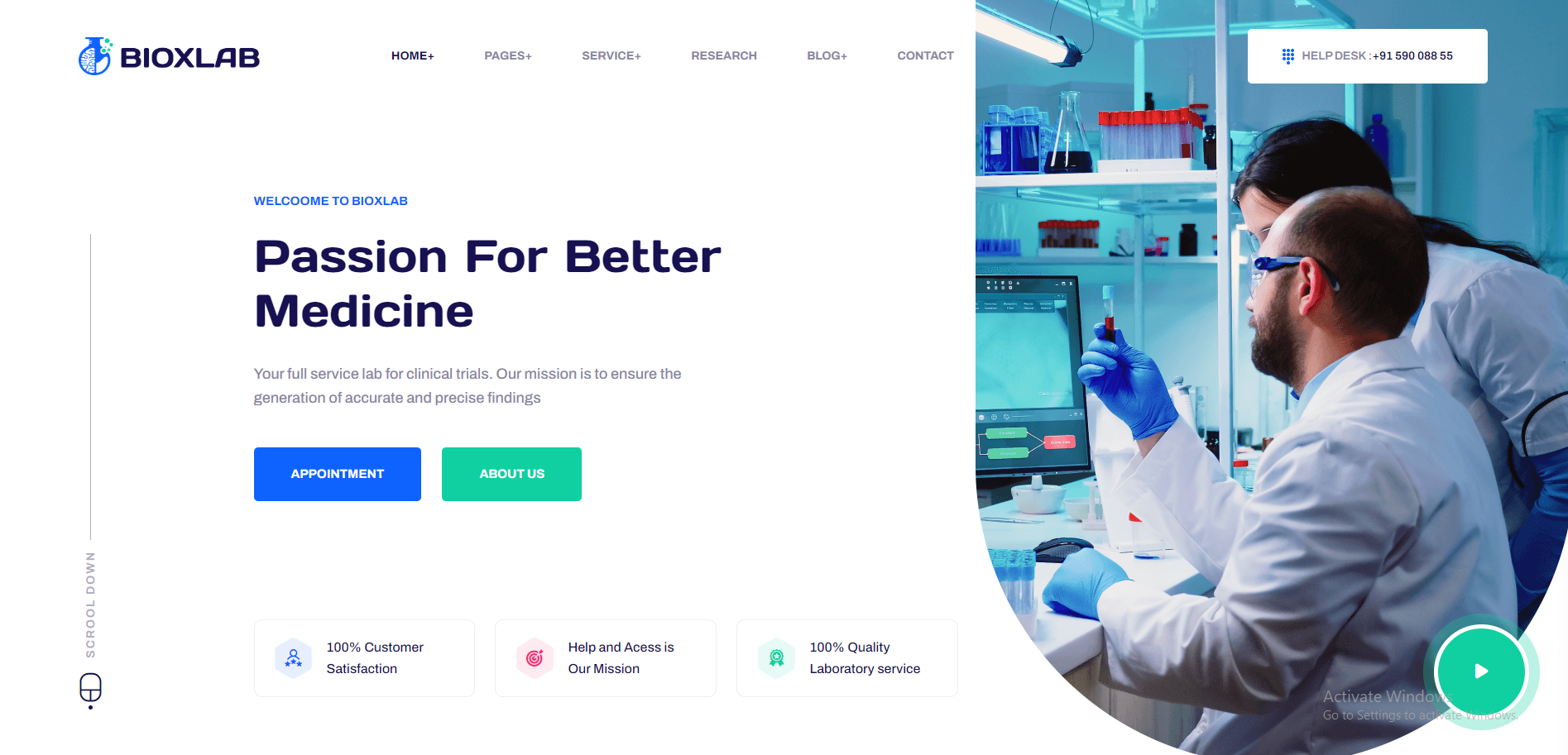
Bioxlab Template is a clean and modern React Next js , Bootstrap Research Template. We have built Bioxlab to be as compatible as possible so that you can use it for any of your needs. It’s suitable for any Laboratory, Research, BioResearch, Pharmaceutical Research, Medical Research, Pathology lab, Data Science research lab, Physical Research and Innovation Center or Medical product development

Requirements

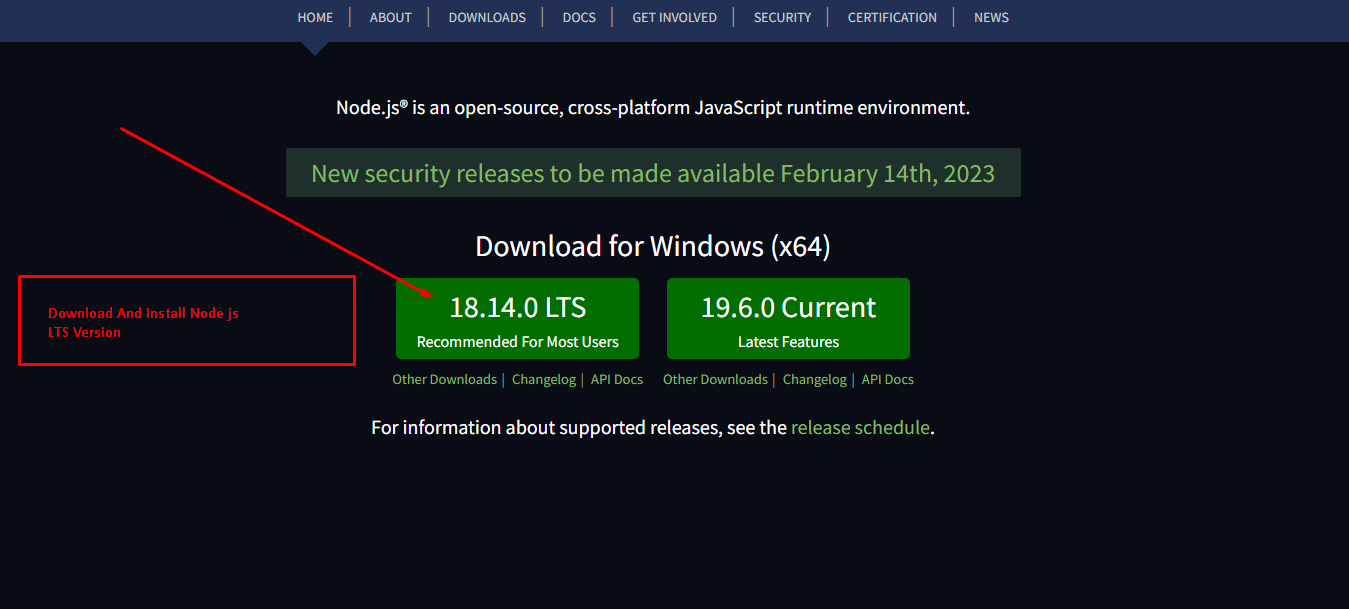
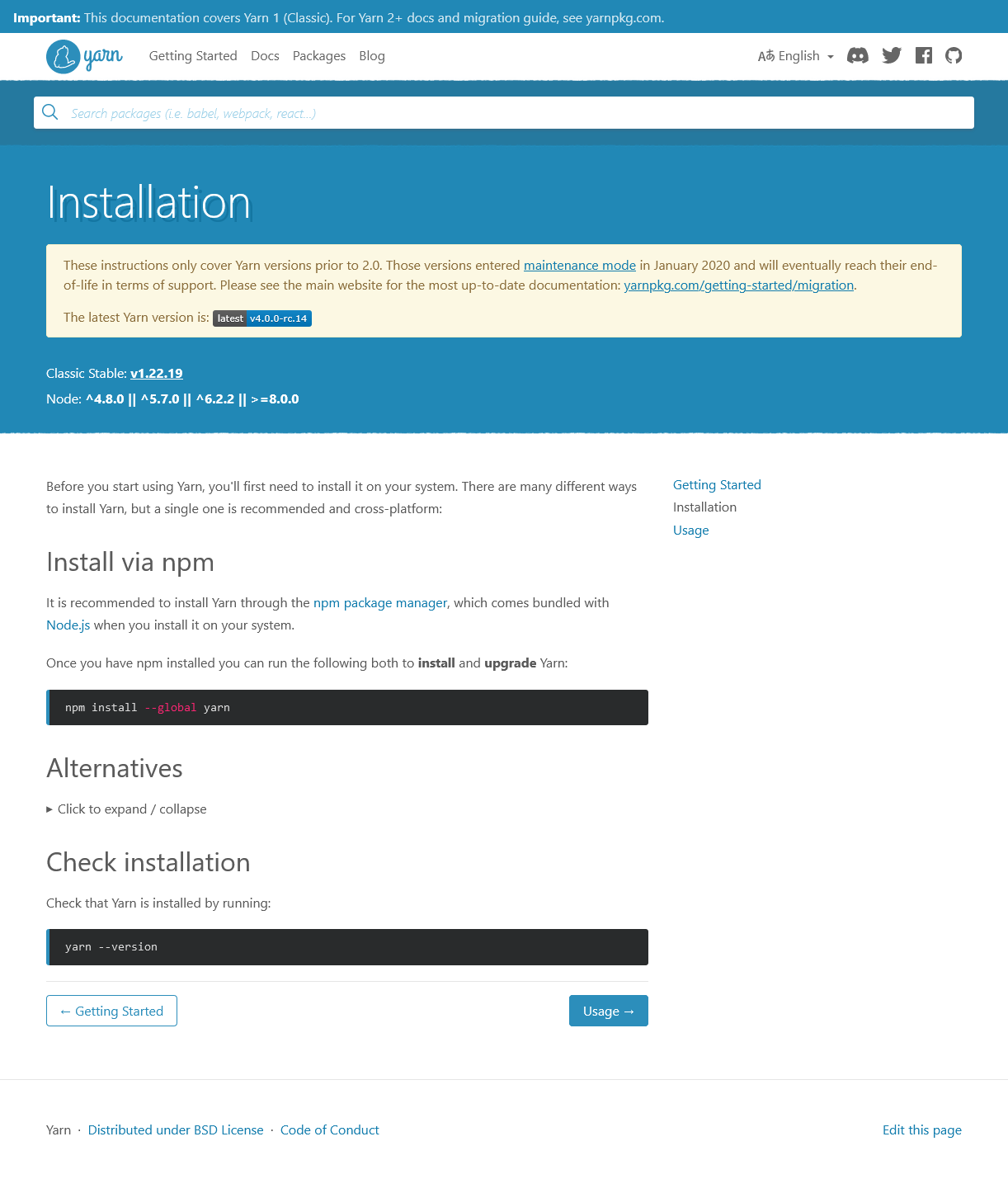
There are system requirements in order to install and setup Bioxlab template and its components properly. Make sure that you are installed node.js and Yarn.

For nodejs go here Nodjs
For yarn go here Yarn
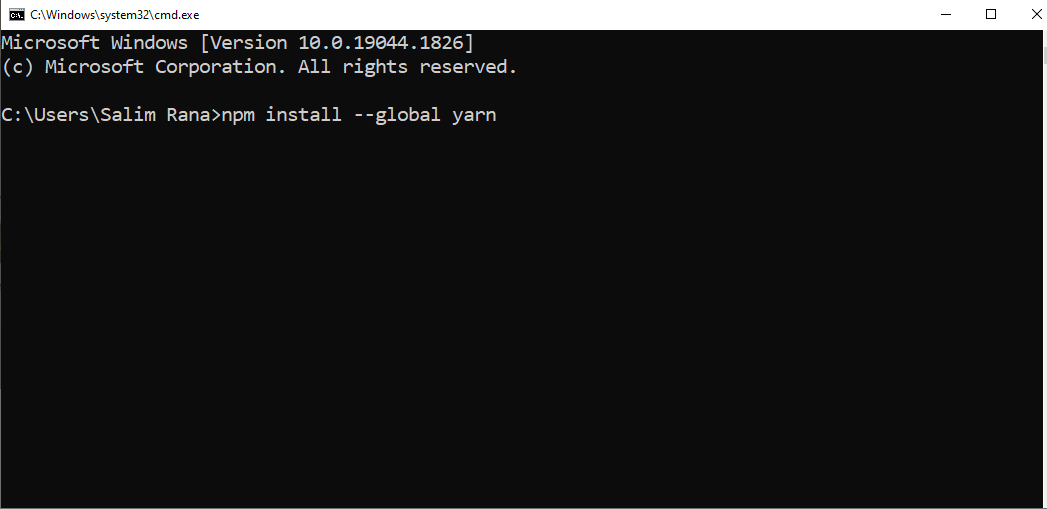
Install Yarn
Template Features

  • React JS
  • Next JS
  • Based on Bootstrap 5.x
  • ReactJS without jQuery
  • Free Premium Quality Support
  • Logo Slider Integration
  • Sticky Header
  • Google Fonts
  • 100% Responsive
  • Nice and Clean Design
  • Clean and commented code
  • Customizeable all components of each page
  • Integrated with FontAwesome
  • 3 Home Pages
  • 20+ Inner Pages
  • Blog Pages
  • Image background
  • Easy to customize
  • Flexible and multi-purpose
  • Valid / CSS3
  • 24/7 Awesome support
  • Detailed documentation

What's Included

After purchasing Bioxlab template on themeforest.net with your Envato account, go to your Download page. You can choose to download Bioxlab template package which contains the following files:

The contents of the template package downloaded from ThemeForest

  • Bioxlab - An React Next js Template file. this file you can edit and use for your business.
  • Documentation - This folder contains what you are reading now :)
React Installation

Please follow the instructions in the video to see how you can install react on your hosting:

  1. For local host -
    1. Open you command prompt
    2. npm install or npm install --legacy-peer-deps
    3. npm run dev (will start the dev server at http://loaclhost:3000)


  1. For locally build -
    1. Open you command prompt
    2. Open package.json file and edit scripts > build replace this "build": "next build && next export",
    3. yarn build (will build locally and generate out folder in root directory)
    4. yarn start (will start the locally build server at http://loaclhost:3000)
  2. Deploying to Vercel - https://www.youtube.com/watch?v=_8wkKL0LKks


Other Scripts
  1. Open you command prompt
  2. yarn lint:fix (This will format your code and fix auto fixable eslint error)

Basic Site Settings

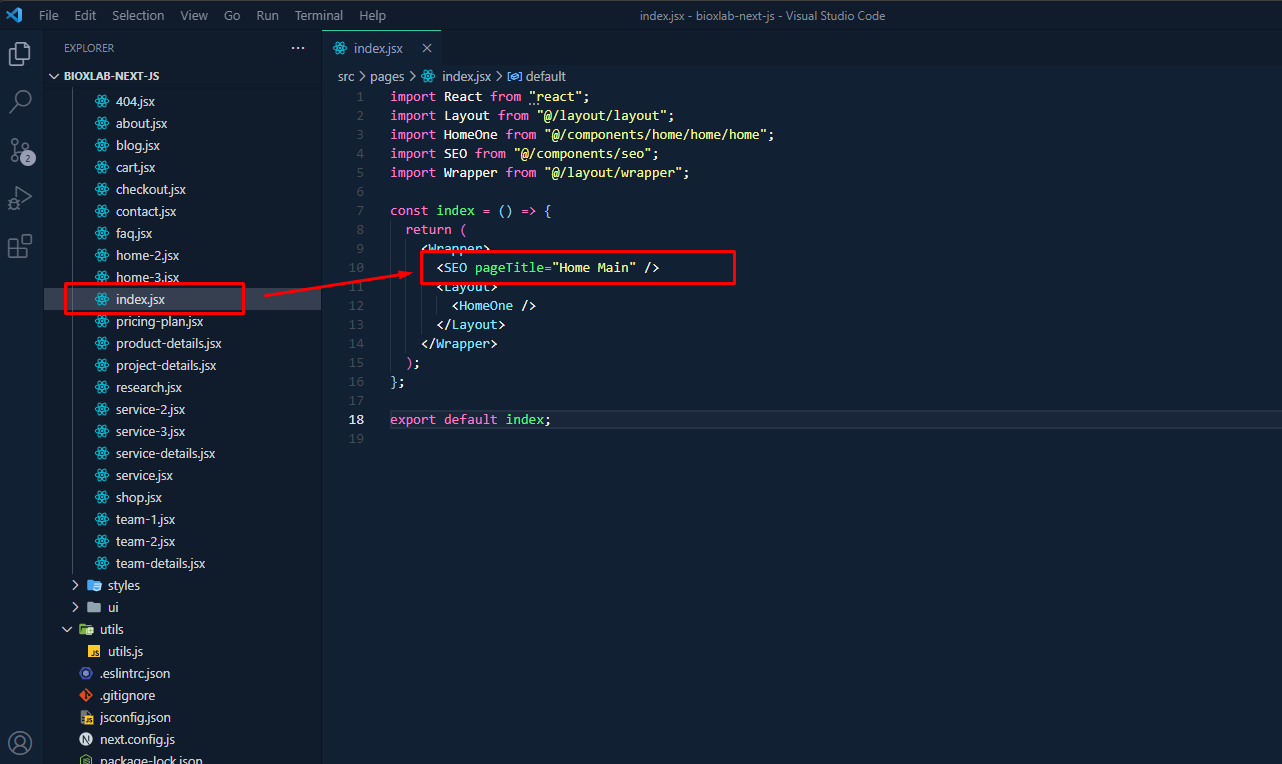
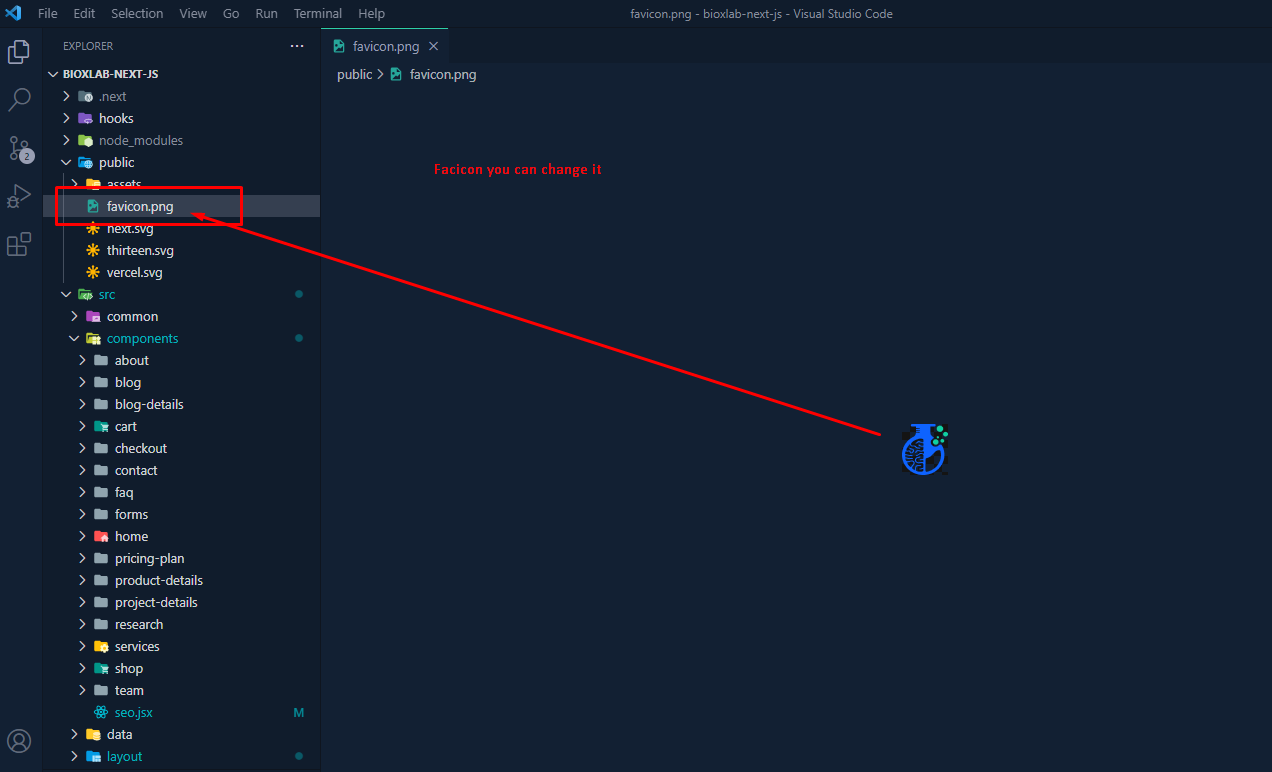
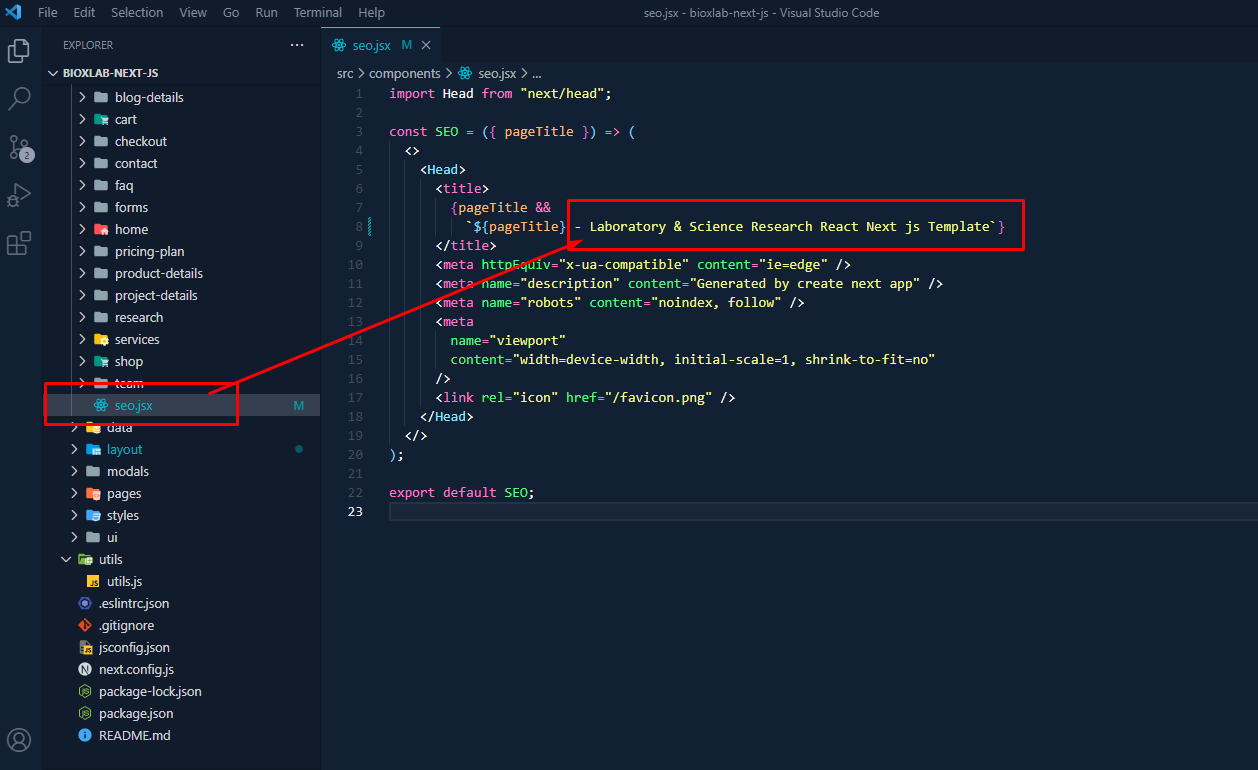
Change Site Title, Favicon and Page Title

To change your Site title and Favicon open the Outstock in your editor and go to the location by following screenshot which are given bellow.

3.1.1
You can change title here
3.1.1
You can change page title here
3.1.1
You can change favicon here

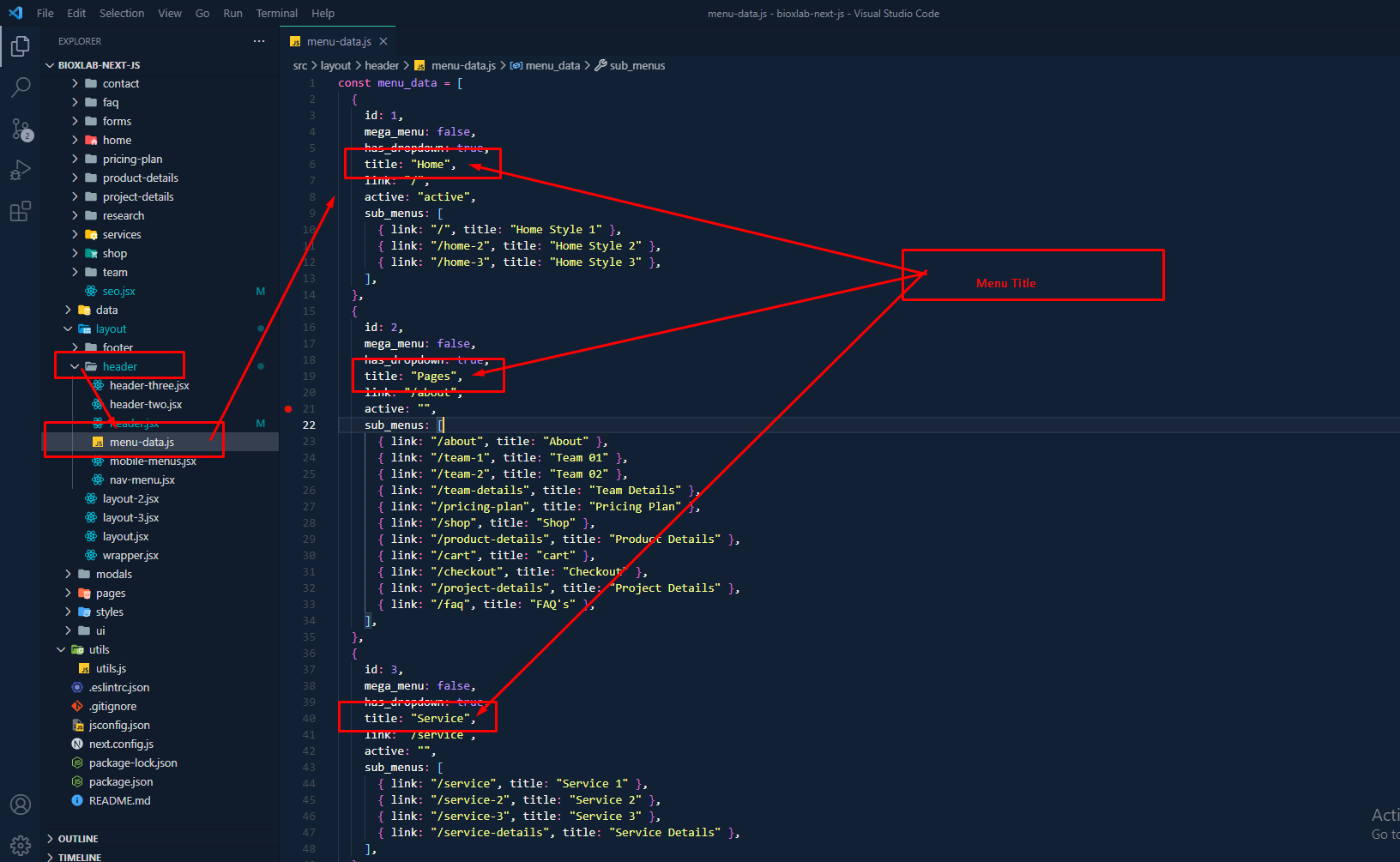
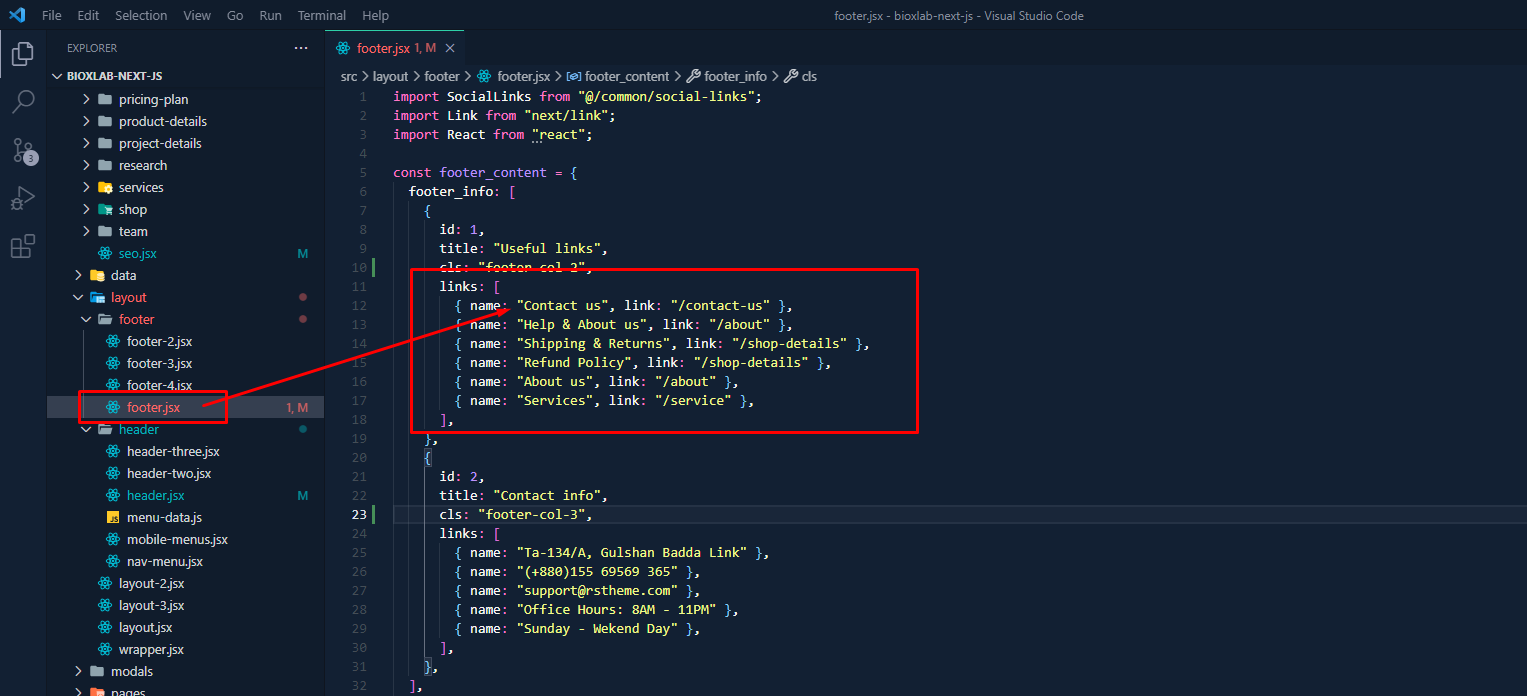
Customize Menu

To customize menu do the following:

  1. From the project folder go to layout header menus-dataOpen the menu you want to use
  2. Then customize the menu
3.1.1
Customize the menu

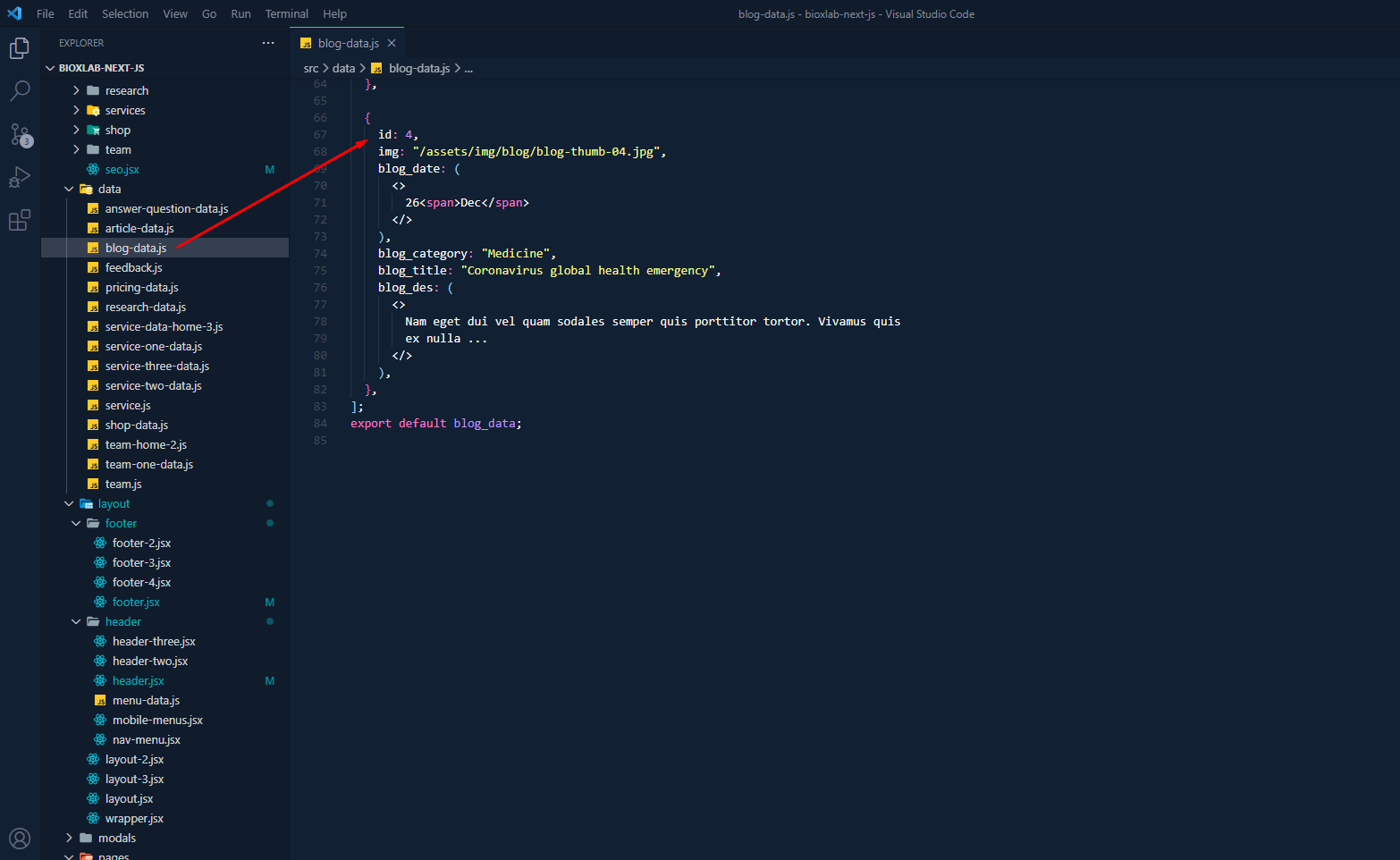
Customize Blog data

To customize blog data do the following:

  1. From the project folder go to data blog Open the menu you want to use
  2. Then customize the blog data
3.1.1
Customize the blog

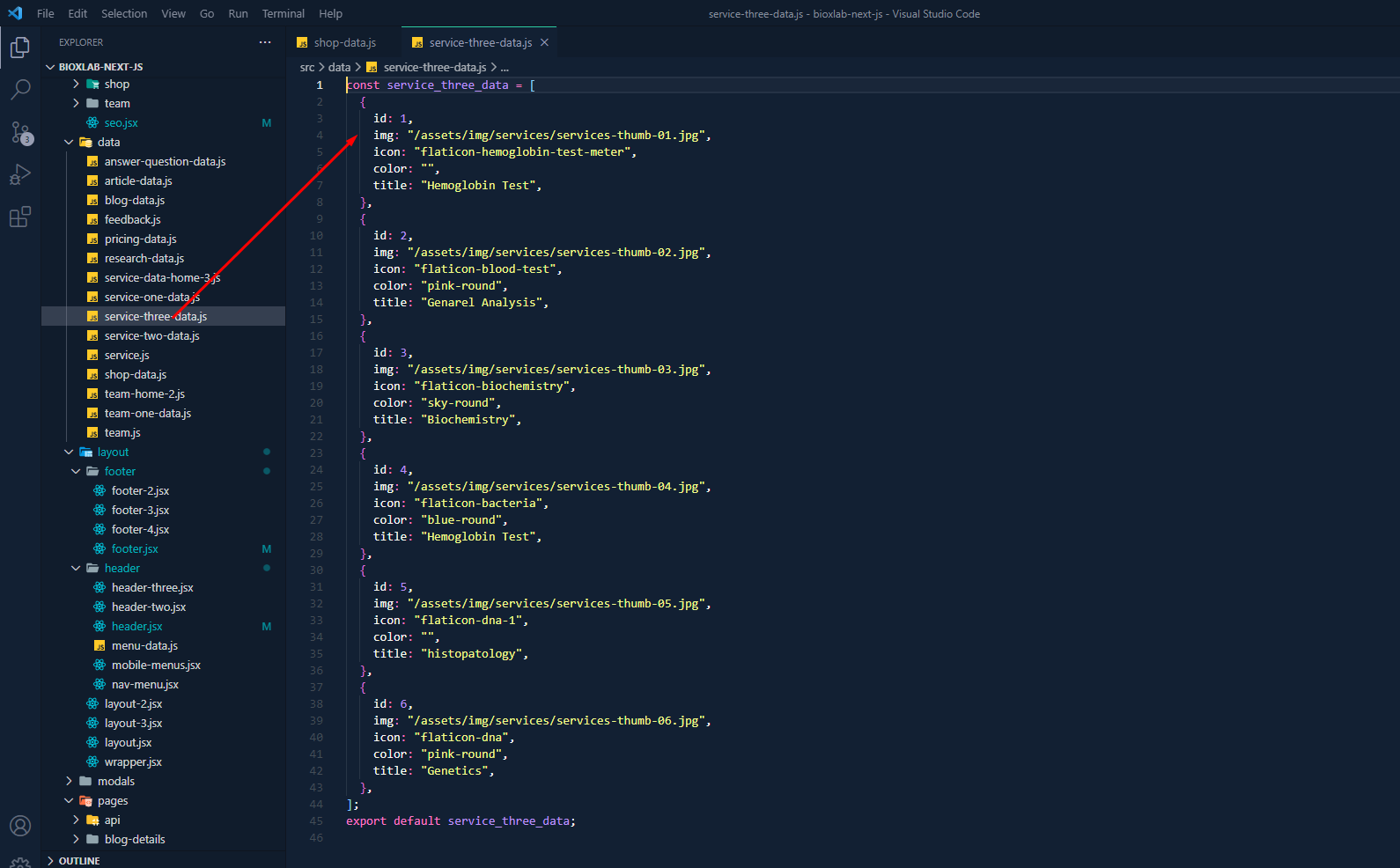
Customize Service data

To customize Service data do the following:

  1. From the project folder go to data service Open the menu you want to use
  2. Then customize the service data
3.1.1
Customize the products

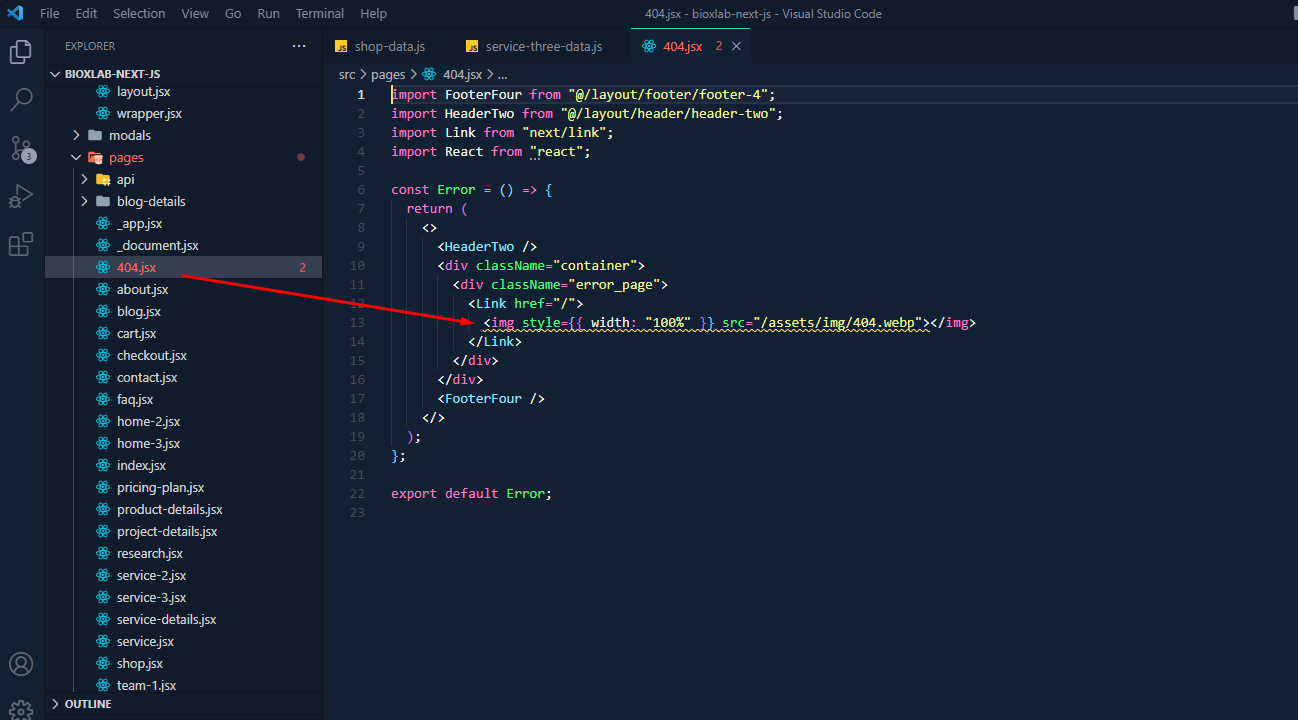
404

To change 404 and setting you can change by following this screenshot here.

  1. From the project folder go to pages 404 Open the menu you want to use
  2. Then customize the 404 data
3.1.1
Customize the 404

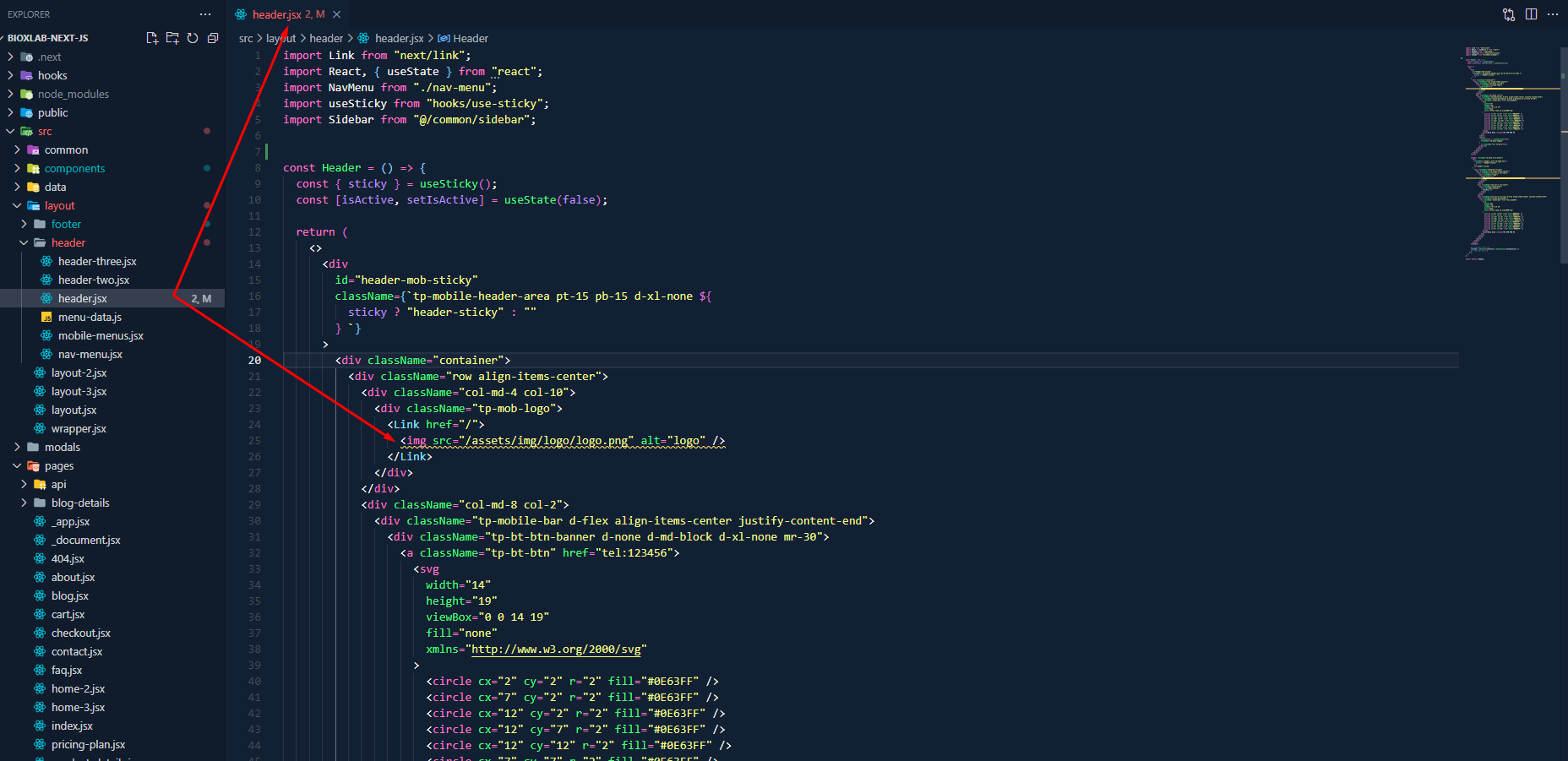
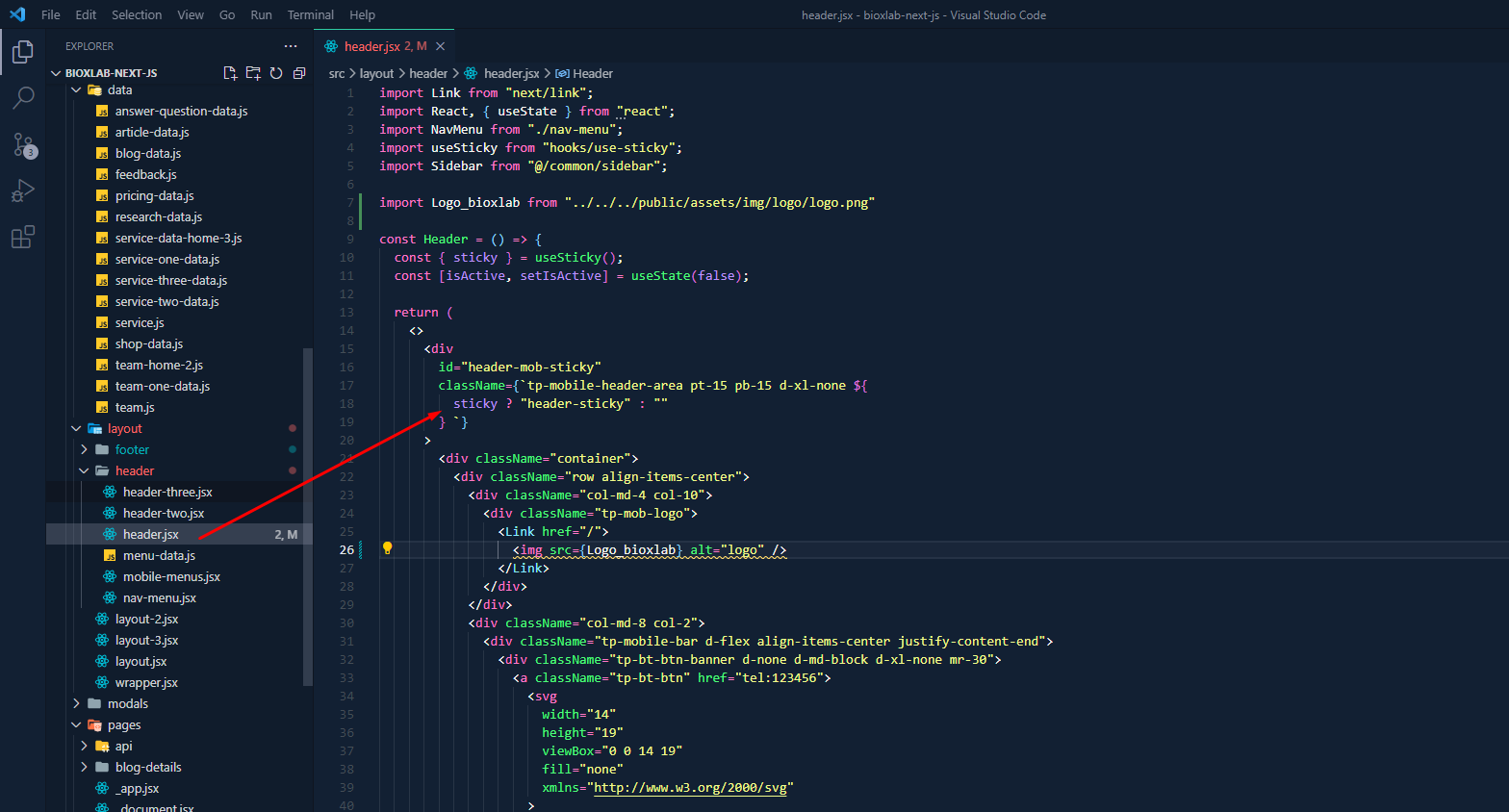
Customize Header

We gave you four header layout. you can modify the header markup there.

  1. From the project folder go to layout headersheader Open the menu you want to use
  2. Then customize the blog data
3.1.1
Customize the header

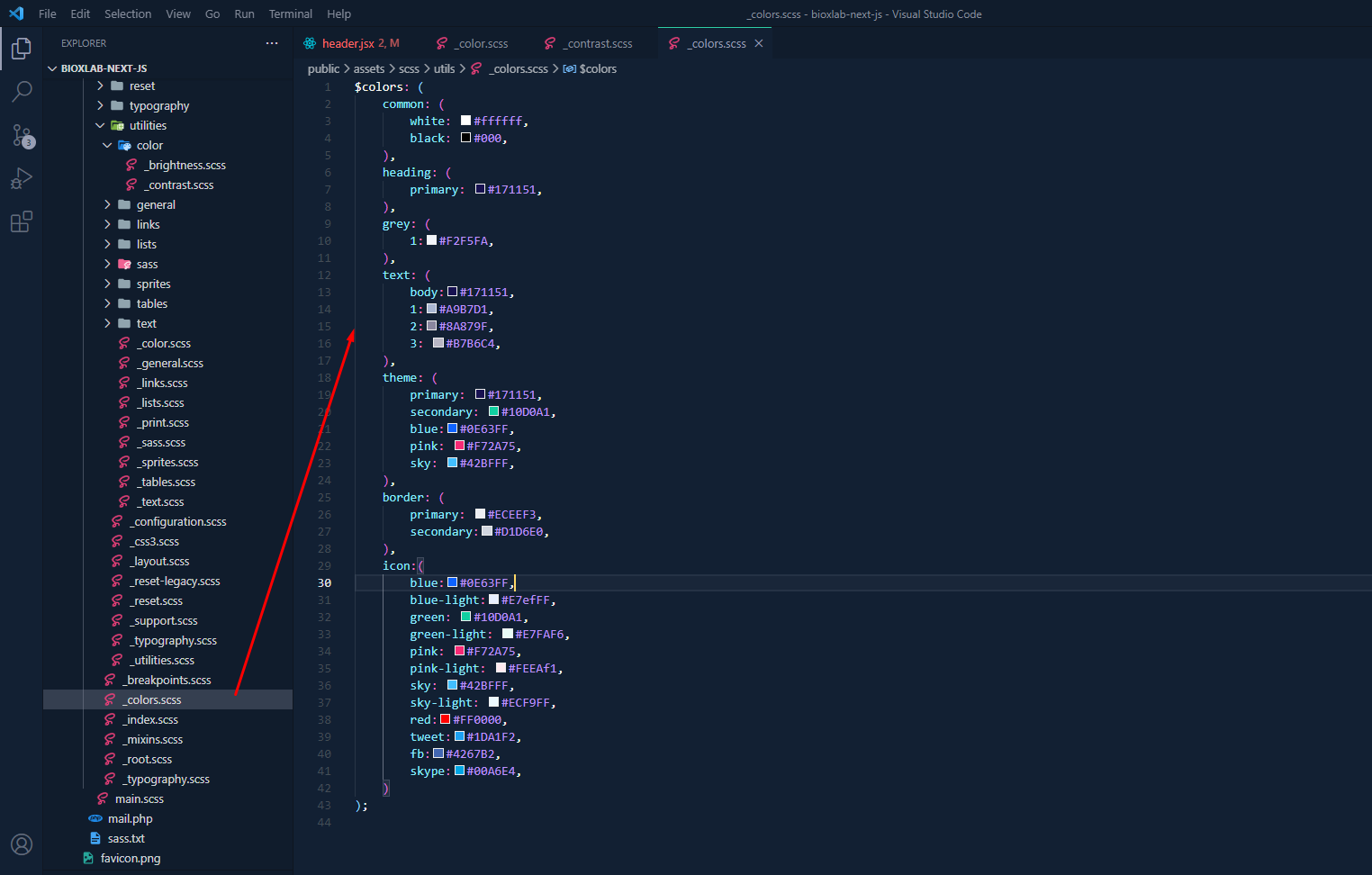
Colors

To change color and setting you can change by following this screenshot here.

  1. From the project folder go to public assetsscssutils Open the menu you want to use
  2. Then customize the color data
3.1.1
Customize the color

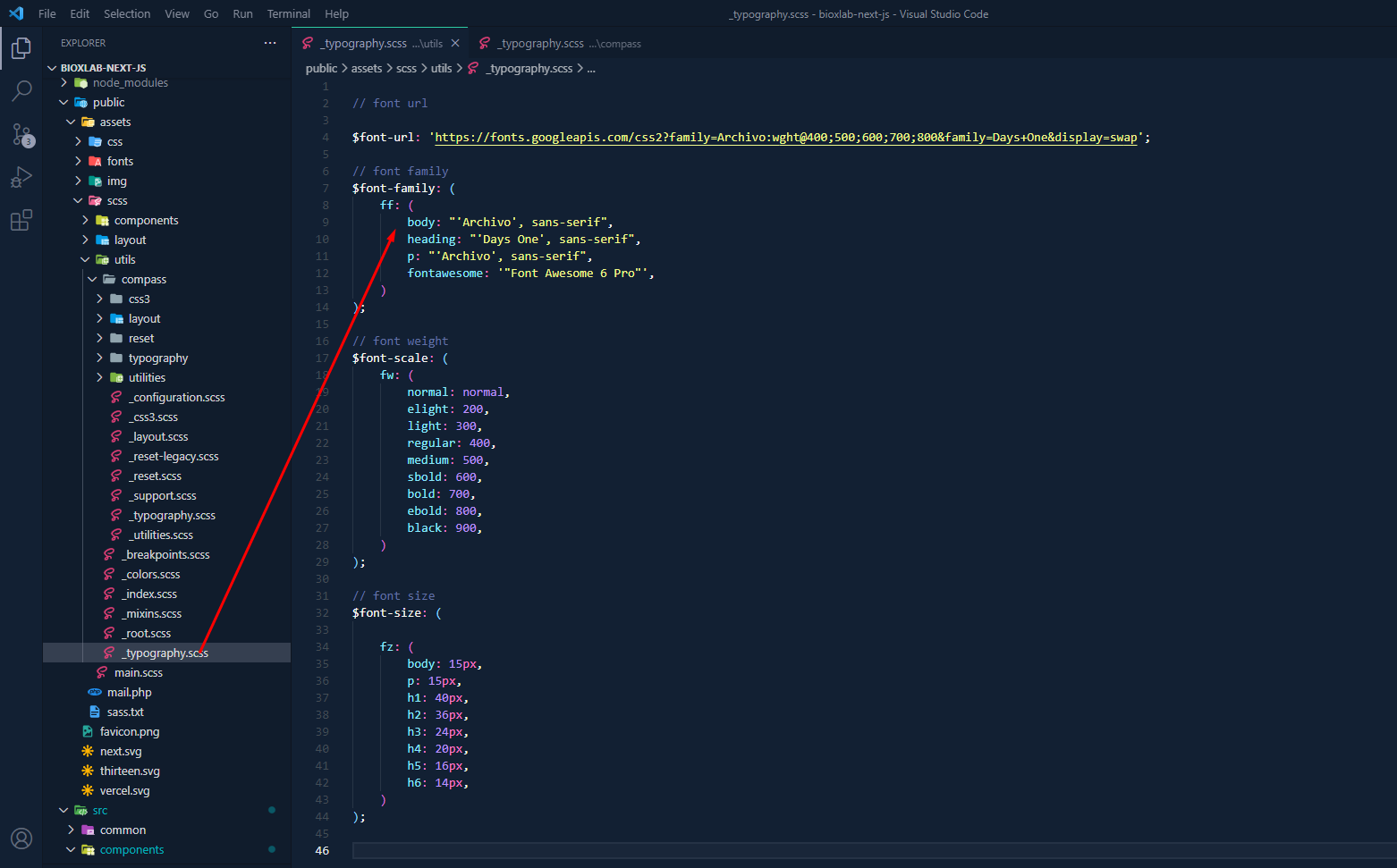
Typography

To change Typography and setting you can change by following this screenshot here.

  1. From the project folder go to public assetsscssutils Open the menu you want to use
  2. Then customize the Typography data
3.1.1
Customize the Typography

Support

If you face any issue please contact us at Support Ticket. We provide 15 hours real-time support for our customers.

Thank you for purchasing our template.